Introduction
Building or upgrading a PC in 2026 isn't just about buying powerful components—it's about balance. A bottleneck calculator helps you quickly determine whether your CPU and GPU are working efficiently together or if one is limiting the other.
If you're experiencing low FPS, stuttering, or underperforming hardware, this guide will help you:
- Understand what a bottleneck is
- Use a bottleneck calculator correctly
- Evaluate its accuracy
- Fix performance issues like a pro
What Is a Bottleneck in a PC?
Simple Definition
A bottleneck occurs when one component in your system restricts the performance of another—most commonly between the CPU and GPU.
Real-World Examples
- High-end GPU + weak CPU → CPU bottleneck
- Powerful CPU + weak GPU → GPU bottleneck
Result:
Your system cannot reach its full potential.
Common Signs of a Bottleneck
- Low or inconsistent FPS
- Stuttering during gameplay
- One component at 100% usage while the other is underutilized
- Poor performance despite expensive hardware
How a Bottleneck Calculator Works
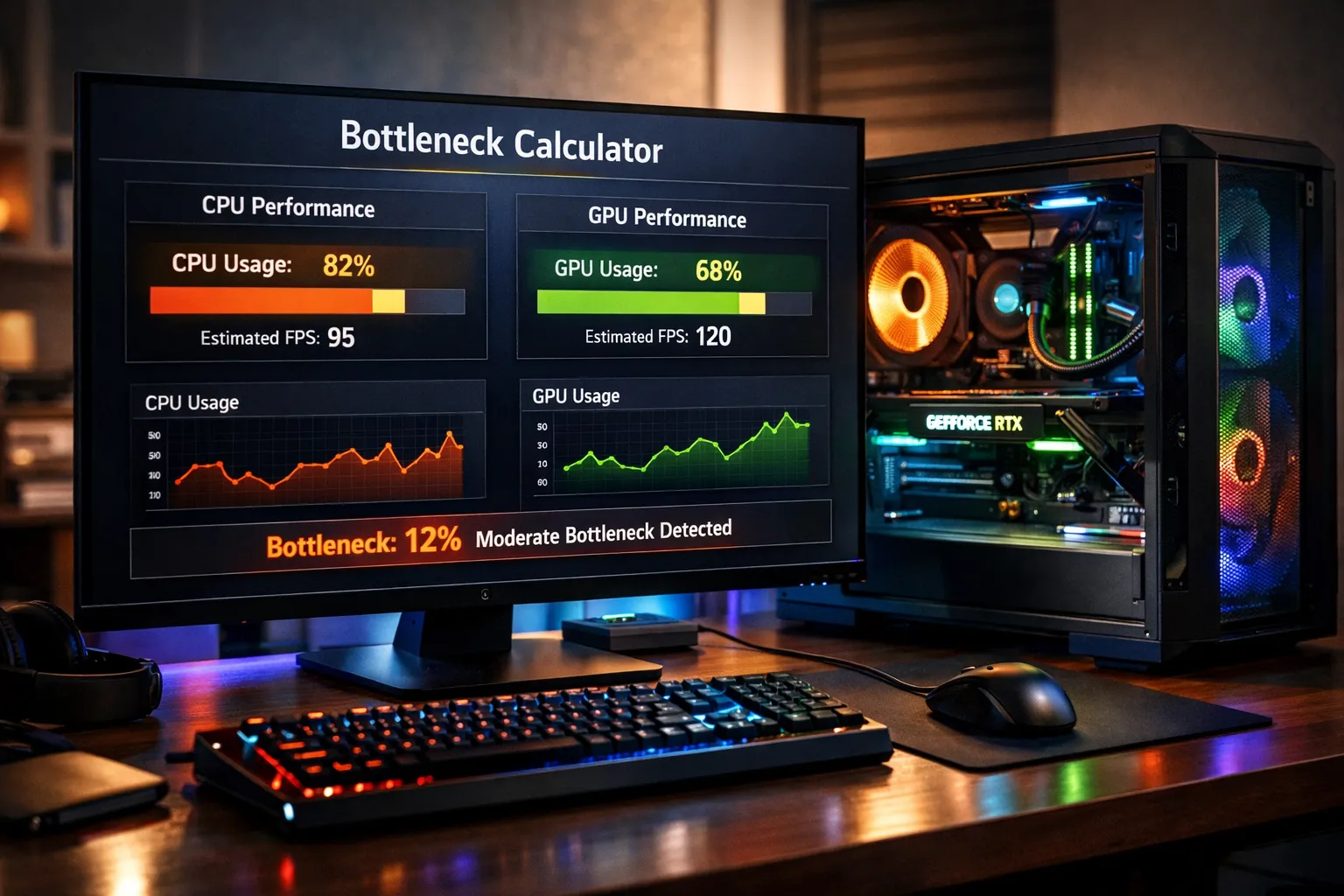
A CPU GPU bottleneck calculator uses performance databases and estimations to compare your hardware.
Key Inputs
- CPU model
- GPU model
- Screen resolution (1080p, 1440p, 4K)
- Usage type (gaming, streaming, editing)
Output Explained
You'll typically see something like:
"Your CPU is causing a 20% bottleneck"
This means your CPU is limiting your GPU's performance by roughly 20%.
How to Use a Bottleneck Calculator (Step-by-Step)
Using a bottleneck calculator is quick and beginner-friendly:
- Select your CPU from the dropdown menu
- Select your GPU from the available options
- Choose your resolution (1080p, 1440p, or 4K)
- Click Calculate or results appear automatically
Within seconds, you'll know if your build is balanced.
Are Bottleneck Calculators Accurate?
What They Do Well
- Provide quick estimates
- Help beginners understand performance balance
- Identify obvious mismatches
Limitations You Must Know
- Don't consider real-world game optimization
- Ignore RAM speed and latency
- Don't factor in cooling or thermal throttling
- Results are generalized—not system-specific
Final Verdict
Bottleneck calculators are useful—but not 100% accurate
Use them as a starting point, not a final decision-maker.
How to Calculate Bottleneck Manually (Advanced Method)
If you want more precision, follow this method:
Step 1 – Compare Hardware Tiers
- High-end GPU + entry CPU → CPU bottleneck
- High-end CPU + entry GPU → GPU bottleneck
Step 2 – Check Real Benchmarks
Search for:
- FPS comparisons
- YouTube benchmark videos
- Hardware review data
Look for systems similar to yours.
Step 3 – Monitor Real-Time Usage
Use tools like:
- Task Manager
- MSI Afterburner
Key rule:
CPU at 100% + low GPU usage → CPU bottleneck
GPU at 100% → GPU bottleneck
CPU vs GPU Bottleneck Explained
CPU Bottleneck
Causes:
- Weak processor
- CPU-heavy games (strategy, simulation)
Symptoms:
- Low FPS even with strong GPU
- GPU usage below 80%
Fix:
- Upgrade CPU
- Reduce background processes
GPU Bottleneck
Causes:
- High resolution (1440p, 4K)
- Graphics-intensive settings
Symptoms:
- GPU usage at 95–100%
- FPS limited by graphics power
Good news:
This is often ideal for gaming.
What Is a Good Bottleneck Percentage?
| Percentage | Rating | Action Needed |
|---|---|---|
| 0–5% | Perfect balance | None |
| 5–10% | Acceptable | None |
| 10–20% | Noticeable | Consider upgrade |
| 20%+ | Significant | Upgrade recommended |
Aim for under 10% for optimal performance.
How to Fix a Bottleneck (Actionable Tips)
Upgrade Smart (Not Expensive)
- CPU bottleneck → Upgrade CPU
- GPU bottleneck → Upgrade GPU
Always upgrade the weaker component first
Optimize In-Game Settings
- Lower CPU-heavy settings (AI, draw distance)
- Adjust resolution scaling
- Use DLSS / FSR if available
Improve System Performance
- Upgrade RAM (speed + capacity)
- Improve cooling to avoid throttling
- Close background applications
Bottleneck Calculation Method
Our calculator uses performance tier matching and resolution scaling to estimate bottlenecks:
- Compare CPU and GPU performance tiers (entry, mid, high, enthusiast)
- Factor in resolution impact (higher resolution = more GPU load)
- Calculate performance difference percentage
- Determine bottleneck type (CPU or GPU limited)
- Provide optimization recommendations
Example Bottleneck Analysis
Intel Core i5-10400F with NVIDIA RTX 4090 at 1080p:
Final Thoughts
A bottleneck calculator is one of the fastest ways to evaluate your PC's performance balance.
But the smartest approach is:
- ✔ Use a calculator
- ✔ Verify with benchmarks
- ✔ Monitor real-world performance
That's how you build a high-performance, future-proof PC
Frequently Asked Questions
What is a bottleneck calculator?
A bottleneck calculator is a tool that estimates whether your CPU or GPU is limiting your PC's performance. It analyzes your hardware combination and identifies which component is holding back overall system performance, helping you make informed upgrade decisions.
How accurate are bottleneck calculators?
Bottleneck calculators are partially accurate—they provide useful estimates but don't account for real-world factors like RAM speed, cooling, game optimization, or driver updates. Use them as a starting point (70-80% accuracy), then verify with actual benchmarks and monitoring tools like MSI Afterburner or HWiNFO.
Can a bottleneck damage your PC?
No, bottlenecks cannot damage your PC. A bottleneck simply means one component is limiting another's performance—it's a performance issue, not a hardware safety issue. However, it does mean you're not getting full value from your more powerful component.
Is a GPU bottleneck good?
Yes, a slight GPU bottleneck (5-10%) is actually ideal for gaming PCs. It means your GPU is working at full capacity while your CPU has headroom for background tasks. Most gaming systems are designed to be GPU-bottlenecked at higher resolutions for optimal performance and smooth gameplay.
How do I fix a CPU bottleneck?
Fix CPU bottlenecks by: (1) Upgrading to a faster CPU with more cores, (2) Reducing CPU-intensive game settings like draw distance and AI complexity, (3) Closing background applications, (4) Overclocking your CPU if possible, (5) Upgrading to faster RAM (3200MHz+), or (6) Increasing resolution to shift load to GPU.
What is a good bottleneck percentage?
0-5% is perfect balance, 5-10% is acceptable and normal, 10-20% is noticeable but manageable, 20%+ requires upgrade consideration. Aim for under 10% for optimal performance. Remember that some bottleneck is inevitable—perfect balance is rare and unnecessary.
How do I calculate bottleneck manually?
Calculate bottleneck manually by: (1) Comparing hardware tiers (high-end GPU + entry CPU = CPU bottleneck), (2) Checking real benchmarks on YouTube for your exact combo, (3) Monitoring real-time usage with Task Manager or MSI Afterburner—if CPU is at 100% while GPU is under 80%, you have a CPU bottleneck.
Does resolution affect bottlenecks?
Yes, significantly. Higher resolutions (1440p, 4K) shift more load to the GPU, reducing CPU bottlenecks. At 1080p, games are more CPU-dependent. At 4K, they're GPU-dependent. If you have a CPU bottleneck at 1080p, increasing resolution to 1440p or 4K can balance the load better.
Should I upgrade CPU or GPU first?
Upgrade whichever is causing the bottleneck. If your CPU is at 100% and GPU is underutilized, upgrade CPU. If GPU is maxed out, upgrade GPU. Use monitoring tools during gaming to identify which component is limiting performance. Always upgrade the weaker component first for best value.